
Reliable garage WiFi helps DIY mechanics access repair information, download diagnostic software, and keep compatible devices connected. When a diagnostic laptop struggles while other devices work reliably in the same location, USB WiFi adapters for laptops may provide an upgrade option. The first step, however, is identifying whether the problem comes from garage coverage, the computer, or the diagnostic device’s own wireless connection.
That distinction matters. A laptop downloading a service manual, a phone communicating with a WiFi OBD2 adapter, and a vehicle receiving a software update may use different connection paths. Improving the home network can help some of these tasks, but it will not automatically resolve every automotive connectivity problem.
Understand Which Connection Your Repair Task Uses
Before changing equipment, identify what needs to communicate with what.
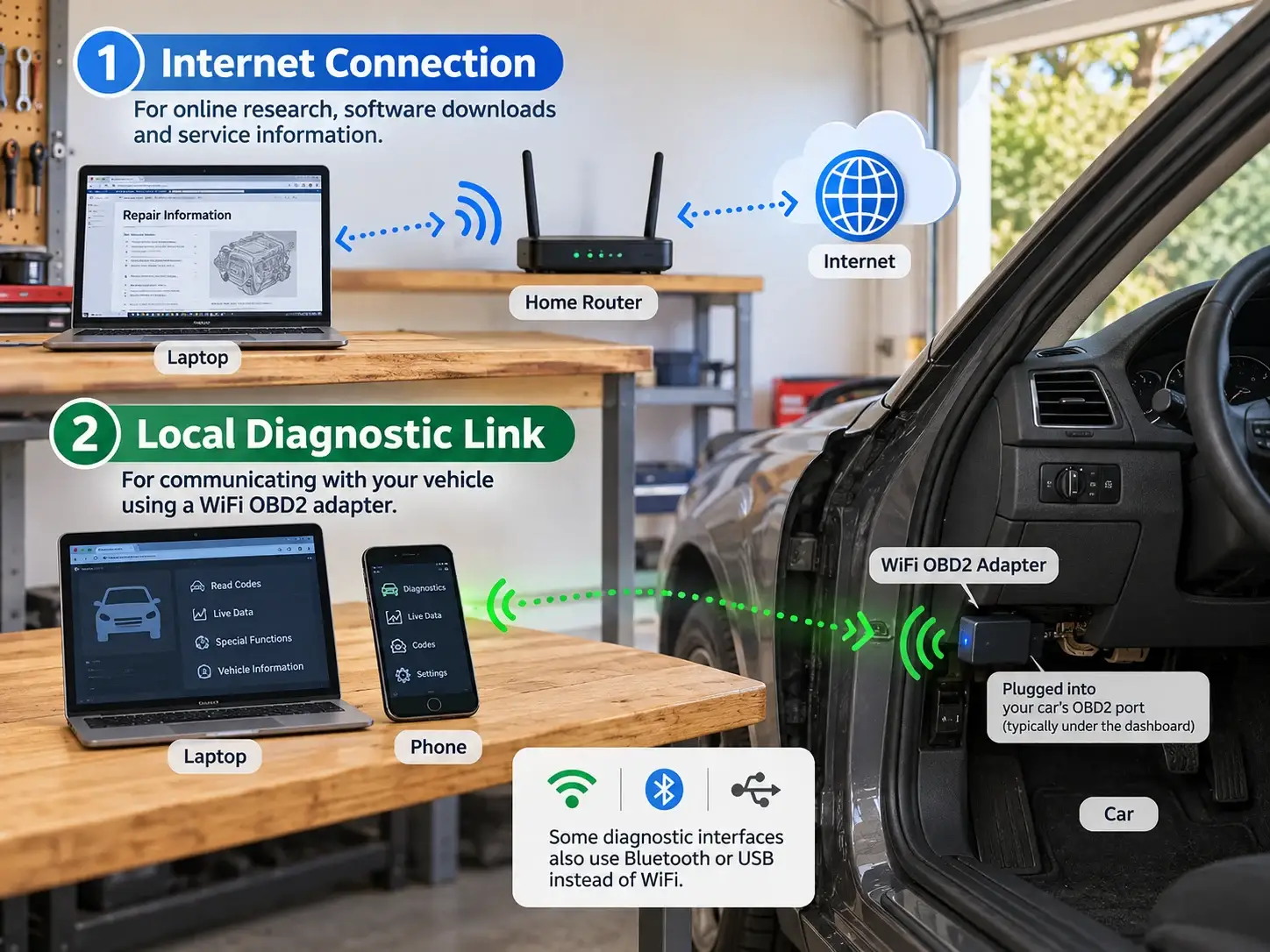
For online repair research, the usual path runs from the laptop through the home router to the internet. The same connection may support diagnostic software downloads, account sign-ins, technical service information, and cloud-based functions.
A WiFi OBD2 adapter may work differently. Some create their own wireless network, which the phone or laptop joins directly. That local connection carries diagnostic data between the adapter and the application. It may not provide internet access.
Other diagnostic interfaces use Bluetooth or USB. Their vehicle connection does not become more reliable simply because the garage router has been upgraded.
Check the instructions for your particular adapter and application. Confirm the connection type, supported operating systems, pairing procedure, and whether any functions require internet access. A “connected without internet” message can be expected on a device-created network, rather than evidence of a fault.
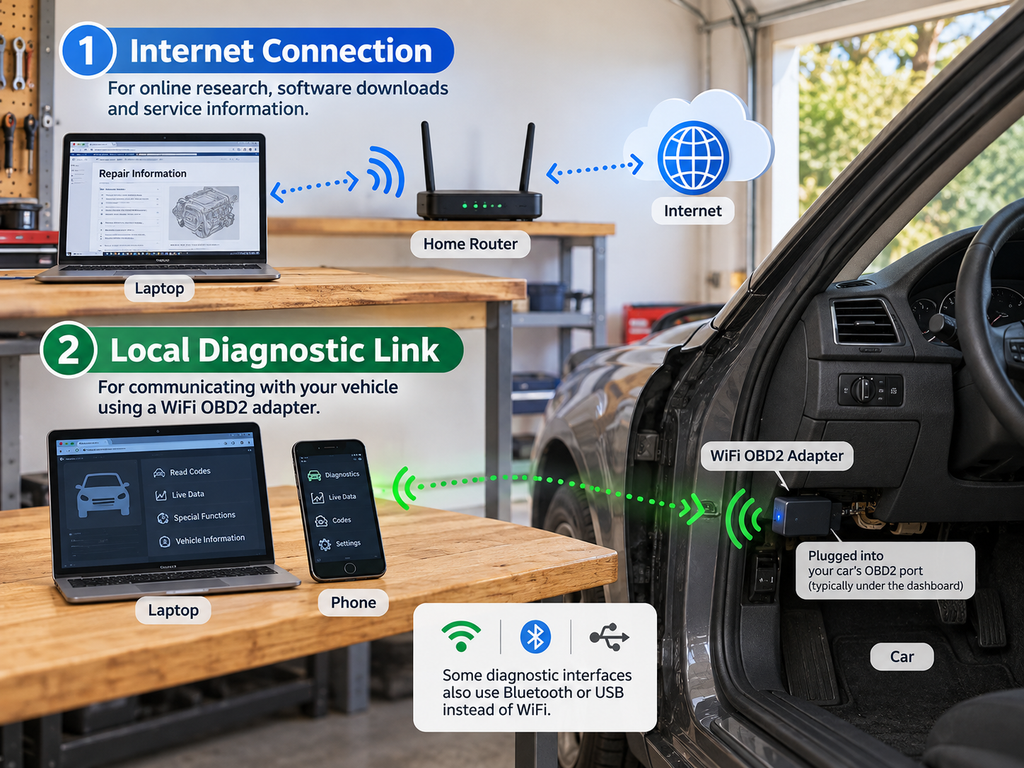
Internet access and the local OBD2 diagnostic connection are separate paths.
Find Out Why Garage WiFi Is Unreliable
Garages present several obstacles to wireless coverage. They may sit at the edge of the house, behind masonry walls, or across a driveway. Metal doors, shelving, tool cabinets, and the vehicle itself can obstruct the signal.
Start with a simple comparison. Test the diagnostic laptop near the router, then repeat the same task at the garage workbench. Pause large downloads and use the same application or test service to make the comparison more useful.
Next, compare another device in the garage. If several devices struggle there but work well indoors, coverage is a likely issue. If only the laptop performs poorly, investigate its wireless adapter, drivers, and placement.
Test under realistic conditions. A connection that works beside an open garage door may behave differently once the door closes and the car is parked inside. Record where the laptop sits and what changes when the connection deteriorates.
Also distinguish internet problems from local WiFi problems. If multiple devices struggle even beside the router, check the broadband service and router before buying equipment for the garage.
A typical home-garage repair setup, where vehicle position and garage construction can affect connectivity.
Improve Coverage Before Replacing the Laptop Adapter
Moving the router can sometimes improve garage connectivity without additional hardware. An open, elevated position with fewer obstacles toward the garage is a useful starting point.
Avoid hiding the router inside a cabinet or placing it behind large metal objects. Make one change at a time, then repeat a practical task from the workbench, such as opening repair information or maintaining a video call.
Where available, compare the router’s 2.4 GHz and 5 GHz connections. The 2.4 GHz band often reaches farther, while 5 GHz can provide more capacity at suitable distances. Actual results depend on interference, construction materials, and the devices involved.
If a coverage gap remains, consider the layout:
A repeater may suit a nearby garage if it can receive a strong signal from the router. An access point connected by Ethernet can provide local coverage without relying on wireless backhaul. A detached garage may require a separately planned connection, depending on distance, obstacles, and installation options.
Do not place a repeater inside the weakest part of the garage and expect it to rebuild a poor upstream signal. Its connection back to the router matters as much as the signal it broadcasts locally.
Choose a USB WiFi Adapter for the Right Reason
A USB wireless adapter makes sense when testing points to a limitation in the laptop’s existing WiFi hardware. It can also provide replacement connectivity when the internal adapter has failed.
It is not an OBD2 interface. A standard USB WiFi adapter gives the computer wireless networking capability; it does not independently read fault codes or communicate through the vehicle’s diagnostic port.
Before purchasing, check operating system support, driver availability, supported wireless bands, and USB requirements. Older workshop laptops may have compatibility constraints that are more important than the adapter’s advertised speed.
Choose according to the actual workload. Accessing service information and downloading software do not necessarily require the newest wireless generation. Stable compatibility and reliable reception at the workbench are more useful than a headline rate the rest of the network cannot support.
When comparing equipment from suppliers such as COMFAST, evaluate the complete setup: laptop compatibility, garage coverage, router capabilities, and installation requirements. An adapter addresses the computer’s connection; a coverage problem may require changes elsewhere.
Install drivers from the manufacturer’s official source and test the adapter before starting a repair session. If the laptop belongs to an employer or workshop, follow its IT policies before changing hardware or software.
Position the Laptop and Adapter Carefully
A laptop placed behind a metal toolbox or beside a vehicle body panel may receive a weaker signal than one on an open work surface. Try a different position before making further purchases.
An adapter with an external antenna may offer placement flexibility, but antenna size alone does not establish performance. Follow the manufacturer’s orientation guidance.
Where supported, a suitable USB extension cable can move the adapter away from the laptop chassis and nearby obstructions. Use a secure arrangement that keeps the adapter clear of liquids, moving equipment, hot surfaces, and areas where it could be knocked loose.
Then test the connection from the position where the laptop will remain during the job. Walking around with the computer during testing can hide the problem you are trying to solve.
For long downloads or stationary workshop use, Ethernet is another option when practical. It removes the laptop’s WiFi link from that connection path, although the router and internet service still affect performance.
Keep WiFi OBD2 Connections Separate from Internet Troubleshooting
When a diagnostic application cannot find an adapter, first confirm that the computer or phone has joined the correct network. Then check the application’s selected interface and any connection details specified by the adapter manufacturer.
Automatic network switching can complicate troubleshooting. A device may leave an adapter’s network because it detects no internet access and prefers a saved home network. Check which network is active when the diagnostic session fails.
Do not assume that adding a second wireless adapter will automatically provide simultaneous diagnostic and internet connections. Operating system routing, application behavior, and the diagnostic interface’s design affect whether that arrangement works.
A simpler approach may be to download permitted reference information before joining the diagnostic adapter’s network. Some setups support internet access through another interface, but this should be verified against the equipment instructions rather than treated as a universal solution.
Reading diagnostic information and programming vehicle modules are also different tasks. Follow the vehicle and tool manufacturer’s requirements for any programming procedure, including the approved interface, power support, and connection method. Better garage WiFi does not make an unsupported programming setup suitable.
Understand What WiFi Does for a Dash Cam
WiFi on a dash cam often supports a local connection to a phone for viewing footage, adjusting settings, or transferring recordings. It does not necessarily mean that the camera connects to the household router or uploads to the cloud.
Check the model’s manual before diagnosing a transfer problem as weak garage coverage. The important link may be the short connection between the camera and the phone.
For a camera that supports home-network uploads, verify reception where the vehicle normally parks. Consider the camera’s supported band, available power, application settings, and any subscription requirements.
A laptop’s new USB wireless adapter will not directly improve the camera’s own radio connection. Troubleshoot each device along the path it actually uses.
When footage matters, confirm that a transfer completed successfully before deleting or overwriting the original recording.
Prepare Properly for Vehicle Software Updates
Vehicle software updates have model-specific requirements. Some use an external WiFi network, some use an onboard cellular connection, and some offer other approved methods. Downloading and installing may also have different conditions.
Follow the vehicle’s current instructions and on-screen prompts. Check parking requirements, battery conditions, expected availability, and whether the update can be interrupted or postponed.
If WiFi is required, test reception at the vehicle’s parking position. A strong connection at the garage workbench does not prove that the vehicle receives an equally useful signal.
Schedule the update when the vehicle is not needed immediately. Avoid making router changes, disconnecting required equipment, or interrupting power during a process that depends on them.
Do not run an engine inside an enclosed garage to support an update or diagnostic session. Follow the manufacturer’s procedure in an appropriate environment.
Build a Repeatable Garage Connectivity Routine
Before beginning a repair, confirm that the laptop can access the information and software required for the job. Download permitted manuals, install necessary drivers, and complete routine software updates at a convenient time.
For local diagnostics, verify the adapter connection and open the correct vehicle profile before depending on the setup. Keep the laptop powered appropriately and arrange cables so they will not be pulled loose during work.
If a connection fails, note the active network, device position, application, and task. That short record can reveal whether the recurring issue belongs to the home network, laptop, diagnostic adapter, or vehicle.
The most effective garage network upgrade follows that evidence. Improve coverage when several devices struggle, replace or reposition the laptop adapter when the problem is specific to the computer, and follow dedicated instructions for diagnostic equipment and vehicle updates. A stable connection then becomes a dependable workshop tool, leaving more attention for the repair itself.